Live tab sharing
Share your terminal with anyone, live in their browser.
Send a link to one terminal tab: a shell, a build, or Claude Code and Codex at work. A teammate, a reviewer or a client opens it and follows along as it happens, with nothing to install. You let each person in, and they type only when you say so.
- Nothing to install for them
- You let each person in
- View only until you allow typing
- Encrypted end to end
Your computer, in lpm
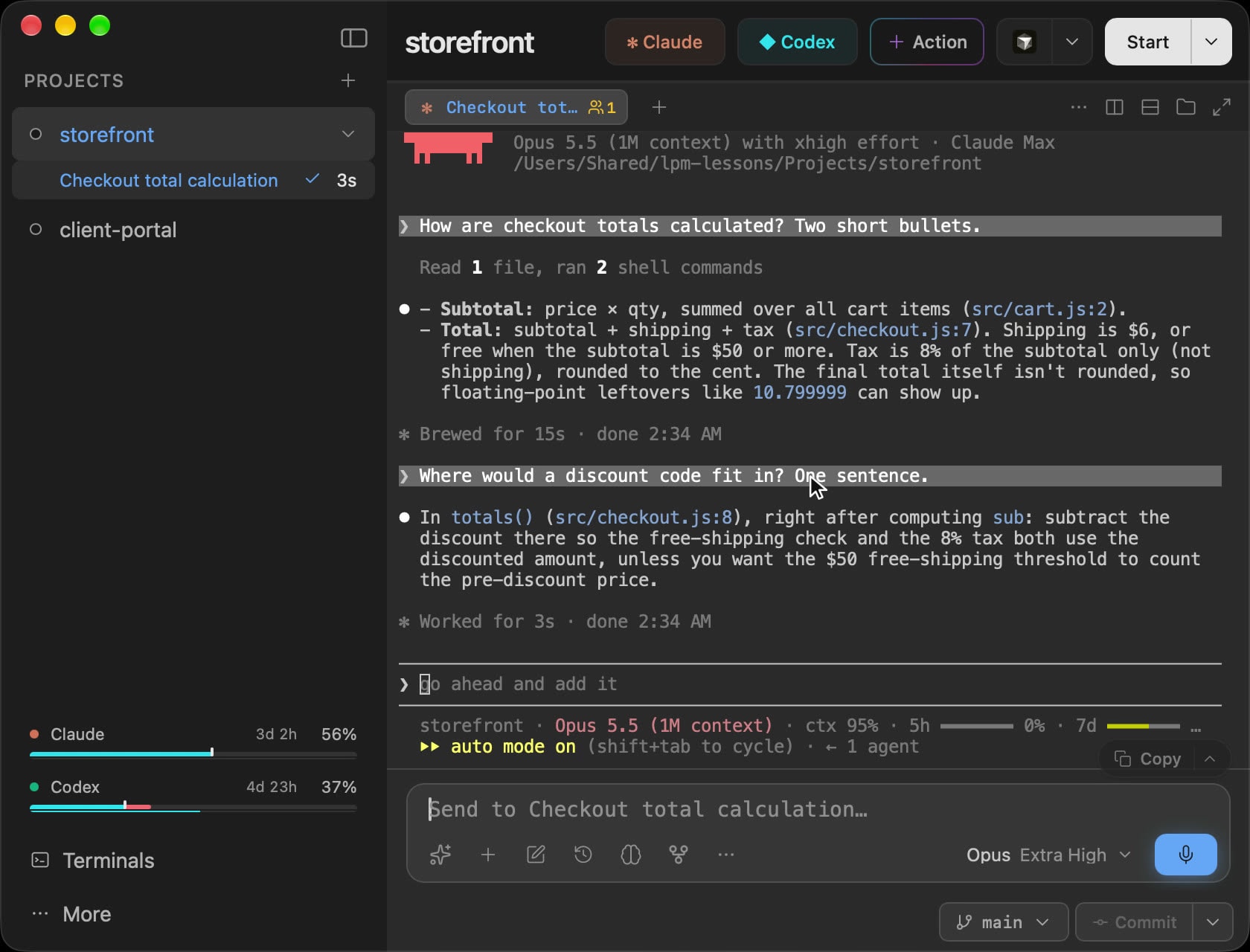
Their browser
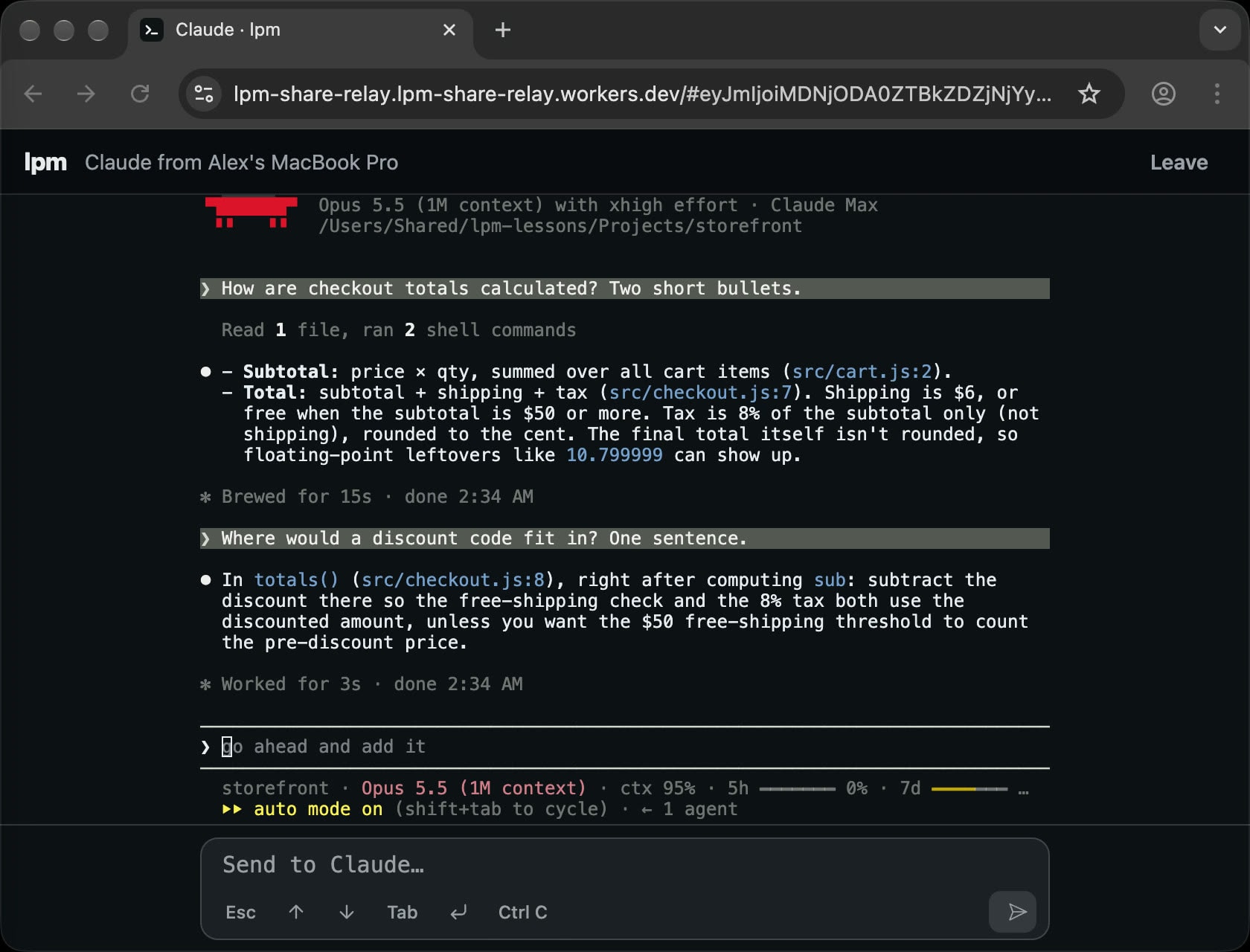
A call shows them pixels. A shared tab hands them the session.
Working through something in a terminal means reading long output, catching the prompt that asks a question, and sometimes typing the answer yourself. Screen sharing was built for slides.
Text, not a video of text
They read the real terminal, sharp at any size. They can scroll back through what ran before they joined and copy a command or a path straight out of it.
Live, not a pasted snapshot
A pasted log shows where the session was. A shared tab shows where it is: a build scrolling, a test failing, an agent stopping to ask a question.
One tab, not your whole screen
Guests see that single terminal. Not your other tabs, your other projects, your files or the notification that just popped up, and they never steer your mouse.
Nothing to set up on their side
No app, no account, no SSH key. A link and a browser are enough, on a laptop or a phone. If they do use lpm, the same link opens it instead.
From link to live in under a minute
A lesson from the lpm series, sharing a tab with Claude Code in it: let a teammate in from their browser, check it's really them, then hand them the keyboard.
- 1
Share the tab
Right-click the terminal tab and choose Share tab. Click Create invite, then Copy, and send the link in a chat or an email.
- 2
They open the link
In a browser they click Join in browser, type their name and click Ask to join. If they use lpm, Open lpm brings it up with the invite filled in.
- 3
Let them in, then let them type
lpm asks on your computer before anyone gets in. Click Let in, and when you want them typing, switch Guests from View only to Can type.
One link. They pick how to open it.
The invite opens a page on lpm.cx with both choices. Either way, they see your tab at your size, and you decide who gets in.
In any browser
- A link and a browser are enough, on a laptop or a phone.
- Works from anywhere: no shared network, no ports to open.
- A prompt box with Esc, the arrows, Tab, Return and Ctrl C, for answering whatever the terminal asks.
- Encrypted end to end between their browser and your computer, through lpm's relay.
In lpm
- The link opens lpm with the invite filled in, so joining is one click.
- The tab shows up under Shared with me in their sidebar.
- The same prompt box they use in their own terminals.
- Connects straight to your computer, on the same network or over Tailscale, encrypted and pinned to it.
It's your terminal. Guests get exactly what you give them.
Sharing a terminal is sharing a shell on your computer, so every step is opt-in and you can take it back in one click.
Every person needs your OK
The link alone gets nobody in. Each person asks to join under their name, and lpm asks you: Let in or Deny. Requests you don't answer lapse after two minutes.
Check it's really them
Someone joining from a browser sees four emoji, and so do you. Not sure the link reached the right person? Ask which ones they see.
View only until you say so
Guests start out watching. Switch Guests to Can type and lpm reminds you that anyone you let in can now run commands on your computer from this tab.
Remove one person, or everyone
Share tab lists everyone you let in and whether they're watching. Remove ends one person's view; Stop sharing ends it for all of them at once.
Nothing outlives lpm
Shares end when you quit lpm. A guest can Leave at any time, and a dropped connection on their side picks back up on its own.
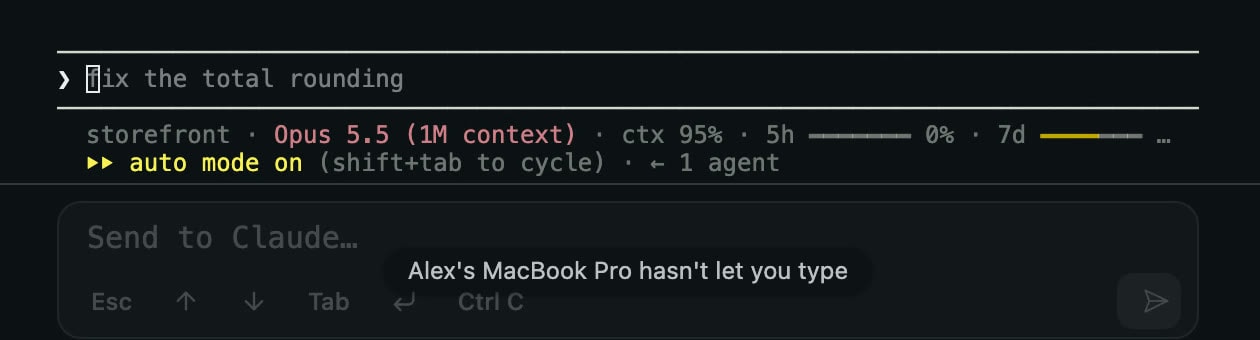
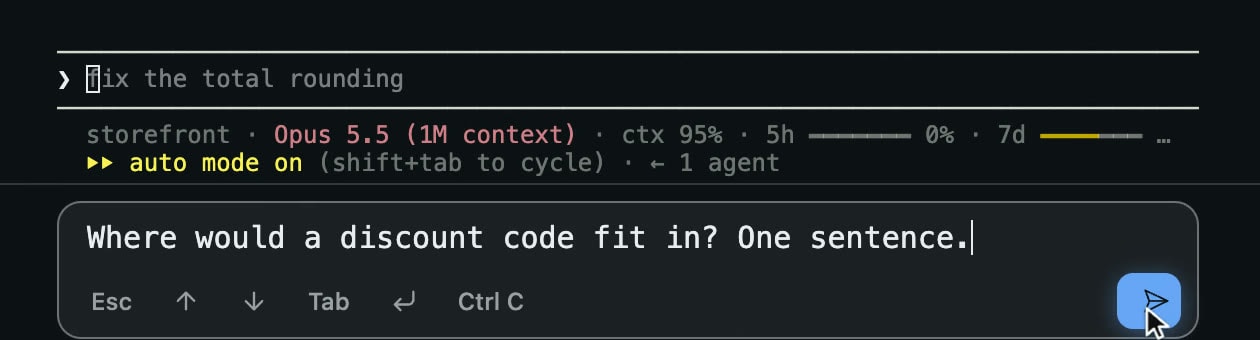
The guest’s prompt box in a browser. It stays in place while typing is off, so nothing jumps when you switch it on.
When someone else should see what's in your terminal
Pair programming
Work in one terminal together
You type, they suggest the next command, or hand them the keyboard for a minute. Both of you read the same output as it scrolls, at the same size.
AI coding agents
Drive Claude Code or Codex together
Share the tab an agent runs in. A teammate watches what it is about to do, weighs in before you approve a migration, or types the next prompt themselves.
Debugging
See the actual error, not a screenshot of it
When someone's build keeps failing, have them share the tab. You read the real output, scroll back to where it went wrong and, if they let you, type the fix.
Onboarding and demos
Walk someone through it live
Show a new teammate how the project starts, or a client how the build runs. Leave Guests on View only and they follow from their browser, with nothing to install.
Sharing a terminal: what people ask
Can I share my terminal with someone else?
Yes. In lpm, right-click a terminal tab, choose Share tab, click Create invite and send the link. The other person opens it, asks to join, and once you click Let in they see the tab live, exactly as it looks on your screen. They can only watch until you switch Guests to Can type.Can I share a Claude Code or Codex session?
Yes, the same way: share the tab the agent runs in. Guests watch it think, answer and edit as it happens, and with Can type they can send it prompts too. Anything they type goes into your session, so it runs on your login and counts against your usage, the same as if you had typed it.Does the other person need lpm or an account?
No. A browser is enough, on a computer or a phone. They don't sign in to anything; they type their name so you know who is asking. If they do use lpm, the same link opens it instead.Can anyone with the link get in? How secure is it?
The link alone gets nobody in. Every person asks to join under a name, and lpm shows you the request with Let in and Deny. Browser guests also see four emoji that match the ones on your screen, so you can ask which ones they see before letting them in. A browser connection is encrypted end to end between their browser and your computer, through lpm's relay. The page a browser joins from comes from lpm too, so for the most private join, use lpm: teammates who join from lpm connect straight to your computer, encrypted and pinned to it.What can a guest do on my computer?
With View only, the default, they can read the tab, scroll back and copy text. With Can type, they can type into that one tab, which means a command typed there runs as you, like a colleague at your keyboard. They can't open your other tabs, projects or files, resize your terminal or take over your view. Switch back to View only, or Remove them, at any time.Which tabs can I share?
Any terminal tab: a plain shell, a long build, Claude Code, Codex or Gemini CLI, including one that runs on another computer you're connected to, like a Linux server. Requests to join it come to your screen. Tabs that show a project's services, like a dev server's output, can't be shared.Do we need to be on the same network?
Not for a browser: it joins from anywhere, with no ports to open on your router. A teammate who opens the link in lpm connects directly to your computer, so they need to reach it on the same network or over Tailscale.Can several people join the same tab?
Yes. One link works for everyone you send it to, and each person asks to join and is let in separately. Up to three people can wait for your answer at once, and a request you don't answer lapses after two minutes. Can type applies to everyone in the tab, and Remove takes out one person.What do guests see when they join?
Your tab at your size, starting with what it already holds, then everything live. A browser fits it to the window by shrinking the text, so nothing on your side changes size. The browser gets a prompt box and Esc, arrow, Tab, Return and Ctrl C keys, and they work only while typing is on.How do I stop sharing?
Right-click the tab, choose Share tab and click Stop sharing: everyone's view ends right away. Remove ends one person's view, and quitting lpm ends every share. A tab you shared on a computer you're connected to ends a minute after your computer disconnects from it. A guest can click Leave at any time. A short network drop doesn't end anything; the browser reconnects by itself.Is it free?
Yes. lpm is free and open source, and sharing a tab, including joining from a browser, is part of it. There's no account to create on either side.
Keep reading
The SSH terminal
Add a project on any machine you can SSH into and run its terminals, services and agents there.
Your agents on your iPhone
Pair lpm Link with your computer and keep your own Claude Code sessions going from your phone.
Claude Code on a remote server
Run agents on a Linux box that stays up after your laptop closes, driven from lpm on your computer.
Review changes in the terminal
Read every edit an agent made, undo a file, and commit the rest without leaving the app.
Best terminal for Claude Code & Codex
Run Claude Code and Codex side by side on the same codebase, with your dev stack alongside.
Everything lpm does
Projects, terminals, agents, Git and other computers: the full feature list in one place.
Don’t screenshot your terminal.
Share it.
Download the desktop app, open any terminal tab and right-click it to share. Whoever you send it to needs only a browser. Free and open source.