Claude Code statusline
2:08 · 6 chapters ·
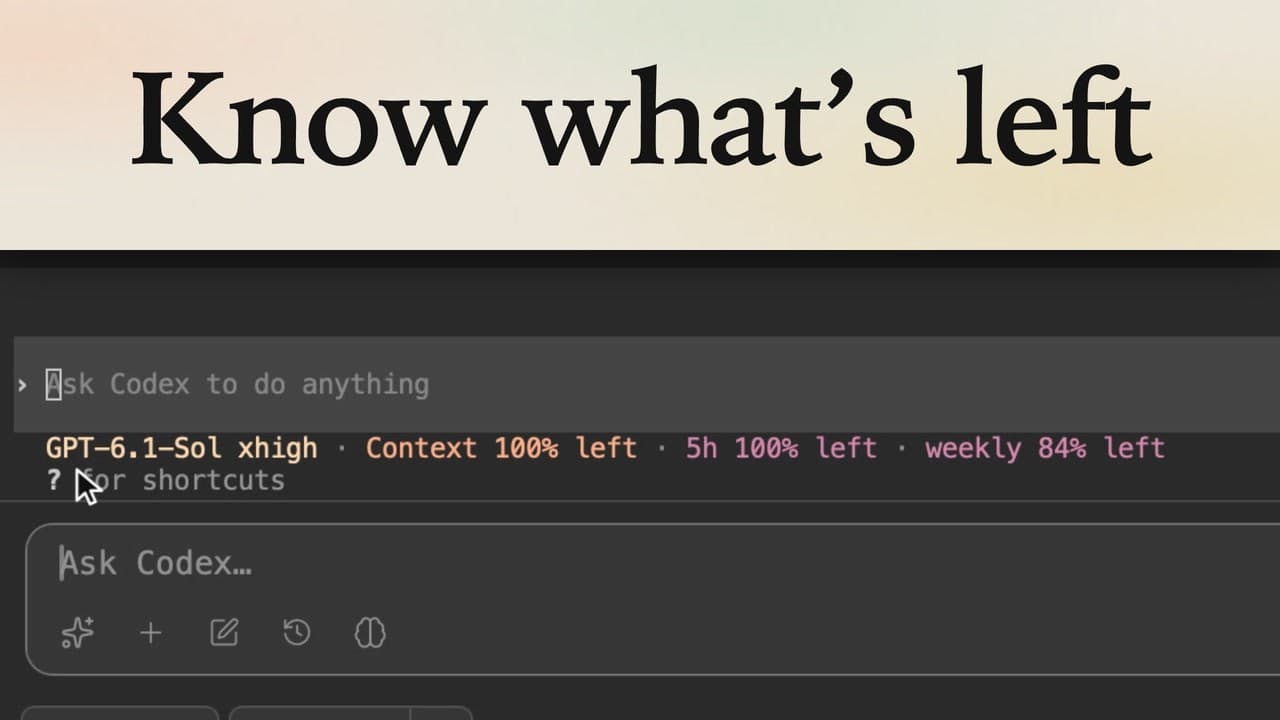
Turn on a Claude Code statusline in lpm that shows how much context your chat has left and how much of your 5-hour and weekly usage limits you've used, right above the box you type in. Pick a layout, learn to read it, trim it, and the Claude Code session you already have open picks it up without a restart.
Transcript
The narration, chapter by chapter. Pick a time to play from there.
Intro
See how much context and Claude Code usage you have left, right under the prompt. One pick in lpm sets it up.
What Claude Code shows by default
Open the storefront project and click Claude in the header. Ask it what this project does, and send it. Right here, between Claude's prompt and the box you type in, Claude Code can show a status line. By default it's off, so there's nothing about context or usage.
Turn on the status line
To turn it on, open More at the bottom of the sidebar, then Settings, and go to Agents. Claude Code status line says nothing shows under the prompt yet, so click Customize. Up top is a live preview, empty for now. Below it are layouts to start from. Pick Clean, which shows context, limits and cost.
How to read it
The preview shows sample numbers. Context left, here 72 percent, is how much room this chat still has. Your 5-hour and weekly limits count what you've used: 34 and 62 percent. Each meter turns yellow at 50 percent, and red at 80. Run low on context, and Claude compacts the chat into a summary. Use up a limit, and Claude has to wait for the reset.
Make it yours
Every item can be dragged, recolored or removed. The cost is only an estimate, so take it out. It's gone from the preview, and Live means Claude Code already has it. There's no save button.
No restart needed
Go back to Settings, then to Projects. The Claude session that was already running picks up the new line, with no restart. Same spot as before, now with this chat's context left, and how much of your 5-hour and weekly limits you've used. Set it once, and every Claude Code session shows how much room you have left, right where you type.