Codex statusline
2:04 · 7 chapters ·
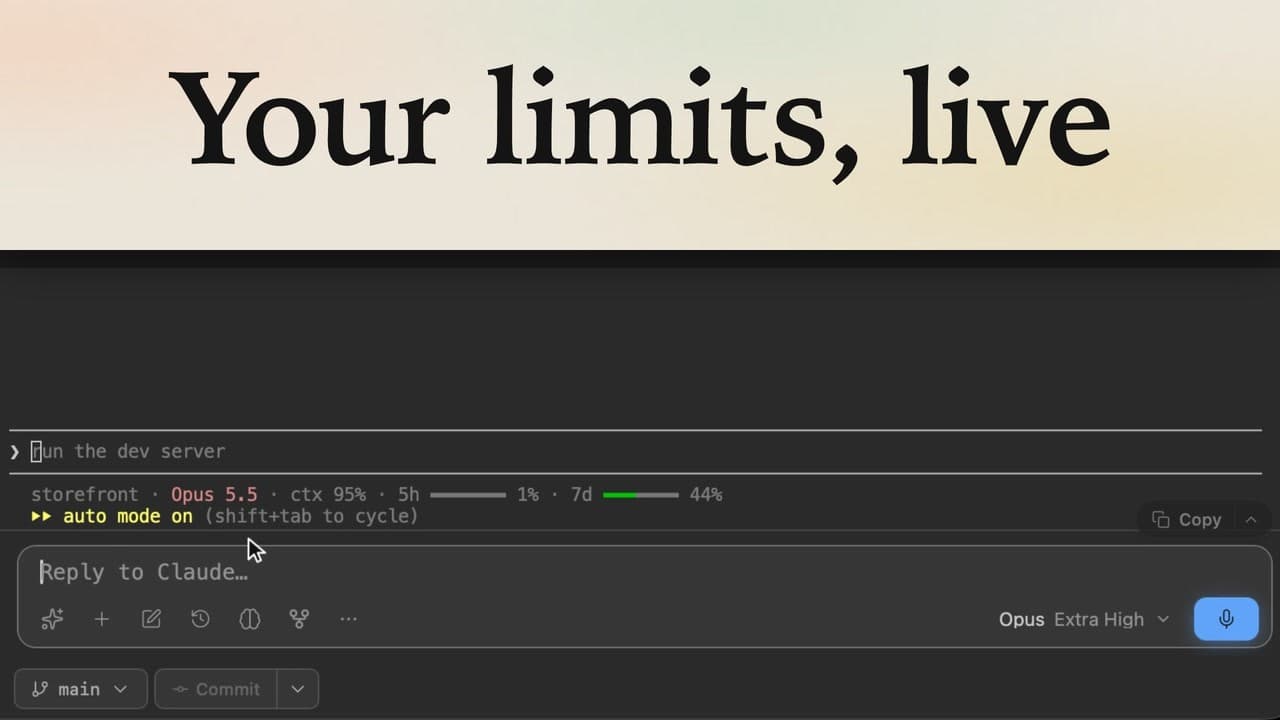
See how much context is left and how much of your Codex 5-hour and weekly usage limits remains, right in the Codex CLI status line under the prompt. This lesson sets the status line up in lpm's visual editor, with no config.toml editing: pick the Usage layout, remove what you don't need, then open a fresh Codex session to see your own numbers and watch them change after one answer.
Transcript
The narration, chapter by chapter. Pick a time to play from there.
Intro
See how much context and Codex usage you have left, right under the prompt. One pick in lpm sets it up.
The default status line
Open a project, and click Codex in the header. The line under its prompt is Codex's status line. Out of the box, it shows just the model and the folder.
Open the Codex status line settings
To change it, at the bottom of the sidebar, click More, then Settings, and open Agents. Scroll down to Codex status line, below the Claude Code one, and click Customize.
Pick the Usage layout
At the top is a preview of the line. Below it are ready-made layouts, so pick Usage. Now it shows the model and the context left, which is how much more this conversation can hold. Next is what's left of your five-hour and weekly usage limits. These are samples; Codex shows your own.
Make it yours
Below, you can drag to reorder, remove, or add items. Primary limit is the five-hour one, and Secondary the weekly one. Fast mode tells you whether Codex's Fast mode is on. If you don't use it, remove it. There's no Save button: it's already saved, and new Codex sessions pick it up.
See it in a new Codex session
Now head back to your project: click the back arrow, then Projects. The Codex you already had open keeps its old line, so click Codex for a fresh one. And there it is, right under the prompt: the context left, and what's left of your five-hour and weekly limits.
Watch it update
Now ask Codex something, like what this project does, and send it. After one answer, there's already less context left. Now one glance tells you how much room you have before you run out.